Featured

    Featured Posts

    Social Icons

Loading...

How To Increase Hard Disk Space in Windows

How To Increase Hard Drive Space in Windows

Everyone always wants to increase data storage in this digital world, I am sure you’re one of them.
Curious internet user always tries to search something interesting like:
How to Increase SD Card Space, How to Increase USB Disk (Pen drive) Space and this is not a myth, everything is possible at Googlearner.

In Article Ads

In this Post, you're going to learn how to Increase/Expand Hard drive memory or space or storage, you can call it anything but the main point is this actually works.
Yes! You can Expand/Increase Hard Drive Storage in Windows. This is possible because Windows hard drives created as NTFS File system. NTFS File system allows you to Enable compression and save storage or you can say Enable compression will increase your Hard Drive storage.

How much storage I can Expand in windows hard drive?
We’ve already tested, You can Expand between 5GB To 7GB storage from 50GB drive when you enable compression. 

It totally depends on the size of drive you're using, If you enable compression on the drive of 100GB so your drive space will increase between 10GB to 15GB.
How To Increase Hard Drive Space in Windows


Let’s focus on Drive (F:) Actual free Space is 4.7GB and we’re going to Enable compression in this Drive, let’s see how much storage we can Increase in Drive (F:)


Follow Steps:

How To Increase Hard Drive Space in Windows
Select Drive >>Right Click on it >> Properties. Simply select any drive whose storage you want to increase, Right-click on it and select Properties.


How To Increase Hard Drive Space in Windows
2 Select General Tab >>þ Tick the Box >>OK. In the drive properties tab, Click on General Tab then þ Tick the box (Compress this drive to save disk space) and finally click on OK.


Ads


How To Increase Hard Drive Space in Windows
3 Select “Apply changes to drive \, subfolders and files” >> OK. After clicking on OK (in the previous step). You’ll see a confirm attribute changes popup, just Select 2nd option (Apply changes to drive \, subfolders and files) then Click on OK.

Ads


How To Increase Hard Drive Space in Windows
4 Wait for the Processing. Wait until the process is complete then you can see how much space increased in your drive.


How To Increase Hard Drive Space in Windows

See Now My (F:) drive free space is increased 4.7GB to 10.5GB, Approximately 6GB is Increased in My 50GB Drive.
We’ve tested on very small drive consisting only 50GB of drive storage and got 6GB more space, why don’t you try this tweak on a large space drive like 100-200GB drive. I am sure the Increased space will shock you, Try it and share with us your Experience in comments.


In Article Ads

How to Increase USB Pendrive Storage Using NTFS Compression


How to Increase Pendrive Storage Capacity by Using NTFS Compression Storage.

If you wanted to store data more than the capacity of your Pendrive, so here the easiest way for you to increase Pendrive's storage capacity.

In simple words, If you’re having a Pendrive so you can store more data on your Pendrive by enabling Storage compression.

After Enable Store compression, whenever you put data on your Pendrive, the data will take less space compared to the original space taken by the data.
For Example: If you transfer a file on Pendrive consisting 50MB that will only take 30MB, this will happen when you enable compression on your Pendrive.

Just follow the simple steps to Increase Your Pendrive Storage capacity.

In Article Ads

Follow Steps:

How to Increase Pendrive Storage Capacity by Using NTFS Compression Storage.

1
Plug in The Pendrive on PC and Right Click on Pendrive >>Format. Plugin your Pendrive on Windows PC or Laptop and Right click on it, then you’ll see options, just click on Format.


How to Increase Pendrive Storage Capacity by Using NTFS Compression Storage.


2
Select File system NTFS and Click on Start. NTFS is only file system which supports data compression, so just tap on the file system and select NTFS then click on start and wait for the Format Success popup.
Ads


How to Increase Pendrive Storage Capacity by Using NTFS Compression Storage.

3
Right Click on Pendrive >>Properties.  After formatting Pendrive Right click on your Pendrive and click on properties.


How to Increase Pendrive Storage Capacity by Using NTFS Compression Storage.

4
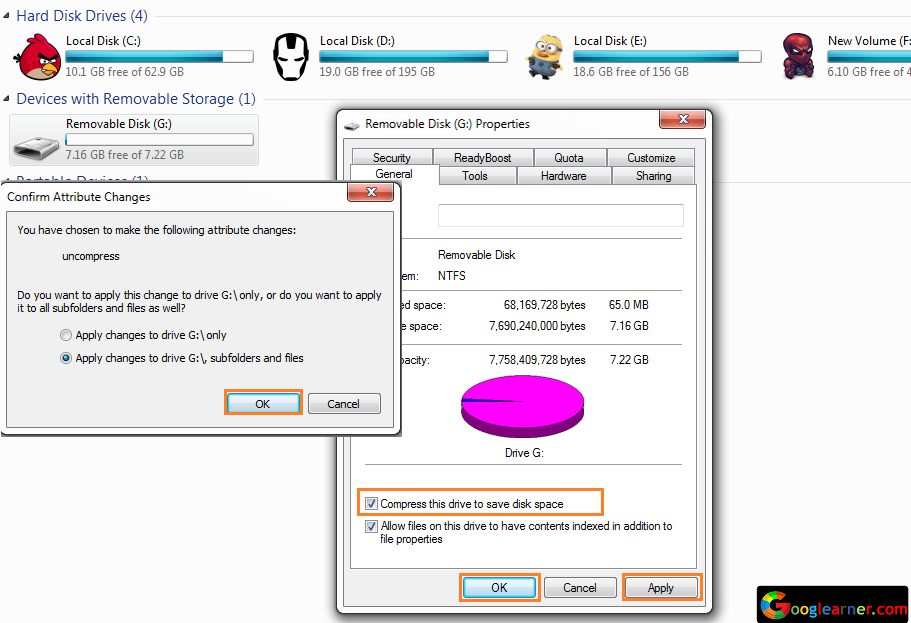
Select tab >>General >>Tick "Compress this drive to save disk space" >>Apply and ok >>Select Apply changes to drive :\ Subfolders and files.  After clicking on Properties, select General Tab>>Check the tick box “Compress this drive to save disk space.”>>Click on Apply and Ok, You’ll see a popup to select compression storage to apply on the only drive or drive with subfolders and files, so select “Apply changes to drive :\, subfolder and files.>> Ok.


In Article Ads  

That’s it, Now your Pendrive is ready to store data more than it’s capacity because you’re using compression to save disk space and Suppose you’re using 8GB of Pendrive so you can store at least 10GB of data on your Pendrive.


How to Install Multiple Whatsapp or any App on Single Android Device

How to Run Multiple Whatsapp or any App on Single Android Device.


A most useful and trusted Android application allow running multiple WhatsApp or any application in a single Android device. 
Now you don’t need to handle more than one smartphones for managing Professional and private life.

In this Tutorial, I'll guide you through running WhatsApp multiple accounts but this tutorial is not only for WhatsApp application.
By the Following this tutorial, you can create a clone of any application which is installed in your Android Device. In Article Ads


Follow the Simple Steps to run Multiple Whatsapp Account on your Android Device.


Follow Steps:

How to Run Multiple Whatsapp or any App on Single Android Device.

1
Install Parallel Space From Google Play. Parallel Space is honestly the best application for creating a clone app on Android device.
Parallel Space has a great user interface and very easy to use, install Parallel Space Application from Google play.

Install Parallel Space From Google play


How to Run Multiple Whatsapp or any App on Single Android Device.

2
Open App and Click on + icon.  Open this Parallel Space Application and click on + icon for create clone application.


How to Run Multiple Whatsapp or any App on Single Android Device.

3
Click on Whatsapp. Now you can create a clone of any installed application on your Android device, Click on Whatsapp if you want to use multiple WhatsApp application on your Android device.


How to Run Multiple Whatsapp or any App on Single Android Device.

4
Tap On the App and start using it.  After adding WhatsApp app on parallel space whenever you want to use your second WhatsApp account, just click on parallel space application and choose WhatsApp application and start using it. In Article Ads

How To Enable Username-Password Login From Login with Facebook Instagram Account

How To Enable (Username-Password) Login From (Login with Facebook) Instagram Account


If you’re Using Instagram by signing in Login with Facebook from many days and wish to get a specific Username and Password instead of Login with Facebook so yes you can get username–password login and no need to Login with Facebook anymore for using an Instagram account.

Username-password Login is beneficial in some cases like you have a specific Login like other accounts, Suppose if you accidentally loose your Facebook Account so it will not affect your Instagram account.

Yes! it's an important security step for your Instagram account because if you've enabled username-password Login on your Login with Facebook Instagram account and if your Facebook Account got hacked or in case you unable to access your Facebook account, Go on! with Username-Password Login as well as If you loose your Instagram's Password and unable to recover it, Go Login with Facebook. 
Awesome isn't it.!
In Article Ads


 Follow some simple steps and you can Enable Username-password login with Login with Facebook on your Instagram Account. 

Follow Steps…

How To Enable (Username-Password) Login From (Login with Facebook) Instagram Account

1
Open Instagram App and log out your Active Account and Log in again. You always get log in through “Log in with Facebook” but if you want a username-password login for your account, click on “Get help signing in”.


How To Enable (Username-Password) Login From (Login with Facebook) Instagram Account
2
Click on “Send an SMS. After clicking this option you need to Enter Mobile number associated with your Instagram account.


How To Enable (Username-Password) Login From (Login with Facebook) Instagram Account

3
Enter Mobile Number Associated with Instagram Account. Enter the Mobile Number associated with your Instagram account. If you have any Confusion about whose number is associated with your Instagram account so firstly you need to check the associated number, you can find the number on your Instagram profile.


How To Enable (Username-Password) Login From (Login with Facebook) Instagram Account

4
Check your Message Inbox. Instagram Will send a Password reset link on your mobile inbox. Simply click and open the link in your phone’s Browser.


How To Enable (Username-Password) Login From (Login with Facebook) Instagram Account

5
Enter a Password. The link will redirect you on Instagram’s create new password page, simply create a password and click on Reset Password.


Now you have a Password and you already have knowledge about your Instagram username.
Go to Instagram, Login your Account Enter your Username and password, also the good thing is now you’ve both Login options (Login with Facebook) as well as (Username-Password) Login. In Article Ads


Powered by Blogger.
© Copyright Bangladesh.ITC
Back To Top