Featured

    Featured Posts

    Social Icons

Loading...

How To Create Free Android App: (Drag & Drop) No Coding Skills Needed

How To Create Free Android App: (Drag & Drop) No Coding Skills Needed.

As we all know, Android is the most widely growing Operating system in the today’s world. So if you have any online business, you must need an android app for betterment of your business or if you’re an end user you can create a free android app for yourself and the best part is you don’t need to know coding just simply choose from the variety of customization, drag and drop items and your app will be ready.

Appypie is the Easiest source for creating a free android app. After creating an android app, just start editing to make app perfect as you actually want Visually and Functionally.

In Article Ads
If you’re using a Free plan, Don’t waste time and start editing your App because the free plan will give access to All App Editing tools for only 48Hours. This Time period is enough for you to create an Android app.


Follow Steps:
How To Create Free Android App: (Drag & Drop) No Coding Skills Needed.
1 Go to Appypie website. Open Appypie website, Click on Create Your Free App.


How To Create Free Android App: (Drag & Drop) No Coding Skills Needed.
2 Enter App Name, Choose App Category and Select Android Operating System Operating System. In This Page, you need to Attempt three options.
·         Give a Name for App. Enter the name of your business or any name you want to create an app.
·         Choose a Category. Choose from the variety of categories, select the category which completely related or better describes your business.
·         Select Android Operating System. In the right Corner, see the Logos of operating system. If you want to create an android app, simple Click on Android logo.


Ads


How To Create Free Android App: (Drag & Drop) No Coding Skills Needed.
3 Enter Facebook Page Name. If you have a Facebook page, you can add it in your app and if you don’t have a facebook page or you don’t want to link your Facebook page with the app, simply click on skip.


How To Create Free Android App: (Drag & Drop) No Coding Skills Needed.
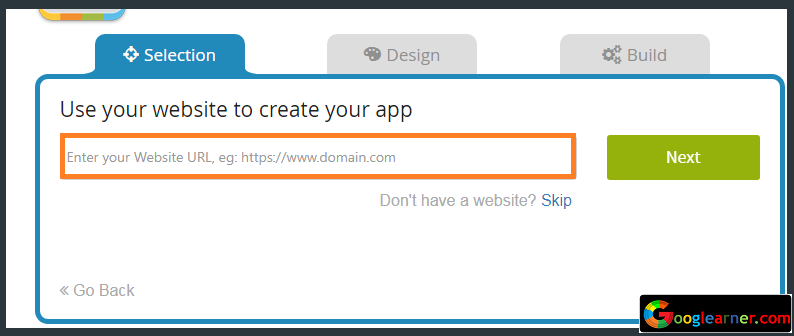
4 Enter Website URL. If you Have a website, just Enter your website URL to link with the app and if you don’t have a website, click on skip.


How To Create Free Android App: (Drag & Drop) No Coding Skills Needed.
5  Choose a Theme. Choose from the variety of themes for your app.


How To Create Free Android App: (Drag & Drop) No Coding Skills Needed.
6 Add App Pages. There are Many pages for every feature you can add in your app by adding pages.

Ads


How To Create Free Android App: (Drag & Drop) No Coding Skills Needed.
7 Create Account. Sign Up using by creating Appypie account, also you can sign up using Sign in with Facebook and Google+.


How To Create Free Android App: (Drag & Drop) No Coding Skills Needed.
8 Choose Your plan According to the Use. If you want to create a free android app, Choose Free Plan, use this link to get $5 Off when choosing a premium plan.


How To Create Free Android App: (Drag & Drop) No Coding Skills Needed.
9 The dashboard is ready!. Edit your App by clicking on Edit App, for Download the app on your device, click on Test App and test all other features one by one to know how it works.
If you like Appypie App creation Software, you can go with the Premium Plans to Access All Features. Check out this Link and get 50% off on purchasing of any premium plan.

In Article Ads

How To Use your Windows PC to it’s Full Potential

How To Use your Windows PC to it’s Full Potential. 

If you have a Windows system which is not performing well so this post is going to be very helpful for you.
In a windows system, there are some so much tweaks which will definitely help you to increase system performance, some tweaks are very useful even you can feel your system is performing much faster than before.

In Article Ads

In this post, I am giving you a tutorial on How to Use your Windows PC to it’s full potential and if you’re thinking about RAM and CPU so yes! you’re right, We’re going to Change the Boot settings in windows system to push the RAM and CPU perform to it’s full potential and increase the system performance up to the next level.


Follow Steps:

How To Use your Windows PC to it’s Full Potential.
1 Type in Windows Search bar “msconfig”. Click on Start and type “msconfig” in the search. After searching you’ll see msconfig.exe in the program list, just click on it.


How To Use your Windows PC to it’s Full Potential.
2 Click on Boot Tab >> Click on Advanced. Now you will see new system configuration pop-up. We need to change the boot settings, so click on the Boot Tab then click on Advanced.


Ads


How To Use your Windows PC to it’s Full Potential.
3 Tick the Boxes ”Number of processors” and “Maximum Memory”. In Boot Advanced options, Tick the “Number of processors” then select the higher number of processors as you can see the screenshot I have selected 4 because 4th is the highest value of processor, also Tick “Maximum Memory” and Finally click on OK.


After clicking on OK, the system will ask you to restart the system, simply do the process and after restarting you can see your Windows system increased performance.


  In Article Ads

How To Increase Hard Disk Space in Windows

How To Increase Hard Drive Space in Windows

Everyone always wants to increase data storage in this digital world, I am sure you’re one of them.
Curious internet user always tries to search something interesting like:
How to Increase SD Card Space, How to Increase USB Disk (Pen drive) Space and this is not a myth, everything is possible at Googlearner.

In Article Ads

In this Post, you're going to learn how to Increase/Expand Hard drive memory or space or storage, you can call it anything but the main point is this actually works.
Yes! You can Expand/Increase Hard Drive Storage in Windows. This is possible because Windows hard drives created as NTFS File system. NTFS File system allows you to Enable compression and save storage or you can say Enable compression will increase your Hard Drive storage.

How much storage I can Expand in windows hard drive?
We’ve already tested, You can Expand between 5GB To 7GB storage from 50GB drive when you enable compression. 

It totally depends on the size of drive you're using, If you enable compression on the drive of 100GB so your drive space will increase between 10GB to 15GB.
How To Increase Hard Drive Space in Windows


Let’s focus on Drive (F:) Actual free Space is 4.7GB and we’re going to Enable compression in this Drive, let’s see how much storage we can Increase in Drive (F:)


Follow Steps:

How To Increase Hard Drive Space in Windows
Select Drive >>Right Click on it >> Properties. Simply select any drive whose storage you want to increase, Right-click on it and select Properties.


How To Increase Hard Drive Space in Windows
2 Select General Tab >>þ Tick the Box >>OK. In the drive properties tab, Click on General Tab then þ Tick the box (Compress this drive to save disk space) and finally click on OK.


Ads


How To Increase Hard Drive Space in Windows
3 Select “Apply changes to drive \, subfolders and files” >> OK. After clicking on OK (in the previous step). You’ll see a confirm attribute changes popup, just Select 2nd option (Apply changes to drive \, subfolders and files) then Click on OK.

Ads


How To Increase Hard Drive Space in Windows
4 Wait for the Processing. Wait until the process is complete then you can see how much space increased in your drive.


How To Increase Hard Drive Space in Windows

See Now My (F:) drive free space is increased 4.7GB to 10.5GB, Approximately 6GB is Increased in My 50GB Drive.
We’ve tested on very small drive consisting only 50GB of drive storage and got 6GB more space, why don’t you try this tweak on a large space drive like 100-200GB drive. I am sure the Increased space will shock you, Try it and share with us your Experience in comments.


In Article Ads
Powered by Blogger.
© Copyright Bangladesh.ITC
Back To Top